
Fill the page in one click
Press Fill this page. The extension matches names, labels, and placeholders, then types the values the way a person would, so the site accepts them.
Save a profile once. Autofill Forms fills the open page from it: name, email, phone, address, and the extra fields you add.
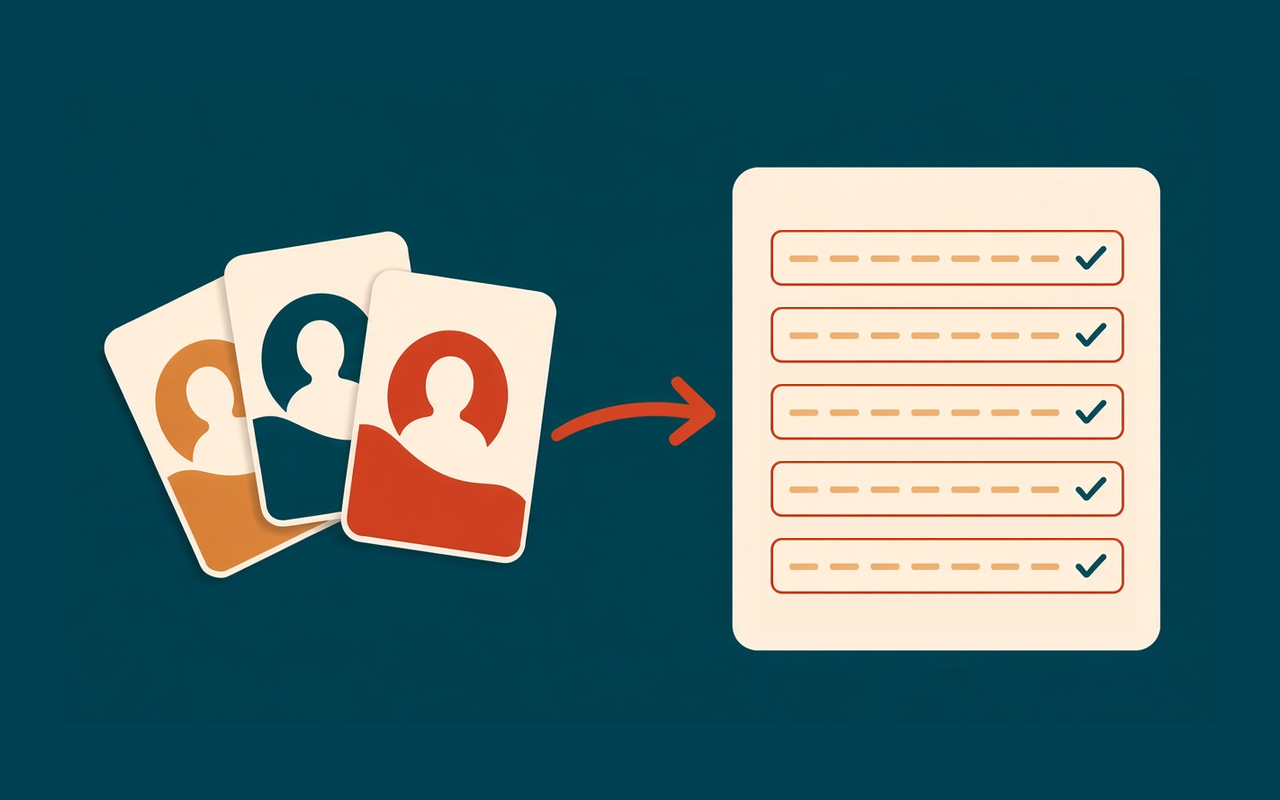
Profiles, then one click
Press Fill this page. The extension matches names, labels, and placeholders, then types the values the way a person would, so the site accepts them.
Keep home, work, and client details apart. Duplicate a profile when two of them share most of the same fields.
Add a field the built-in list does not have. If a site uses an odd label, attach keywords so that value wins over the guess.
Filled a long form by hand? Save from page copies those values into the selected profile, or offers to keep them after you type.
Ctrl+Shift+U fills the current page. The right-click menu can fill the page or insert one field.
Profiles live in Chrome storage in this browser. Filling a page does not upload the form or your details.
Simple by design
A Chrome extension for people who type the same contact details into sign-ups, checkouts, and applications. The profile stays in the browser.
Chrome Web Store
“I keep a profile for each client. Checkout stops being a copy-paste job.”
“The long application still needs a look, but the name and address are already there.”
“A date token gives each sign-up a different value without editing the profile.”
“Save from page grabbed what I had just typed, so the next ticket starts full.”
Three quick steps
Install Autofill Forms, click the puzzle menu, and pin the icon so it stays on the toolbar.
Type your name, email, phone, and address into the default profile. Add custom fields if a site asks for something else.
Open a form and press Fill this page, or use Ctrl+Shift+U. Check the highlighted fields before you submit.
Answers before you install
No. Profiles cover contact details, addresses, and custom fields you add. Use Chrome’s own password manager for passwords.
Turn on the setting that skips fields which already contain text. Filled fields stay as you left them.
In this browser, in the extension’s local storage. They are not sent to our servers. Export a JSON file if you want a copy you can move.
Ordinary web pages, including forms inside frames. Chrome blocks extensions on its own internal pages and on the Chrome Web Store.
Ctrl+Shift+U on Windows and Linux, Command+Shift+U on Mac. Change it from the shortcut link in the popup, which opens Chrome’s shortcut page.
Yes. Each profile has its own fields and rules. Pick the profile in the popup before you fill.